Skip to content
Stack 3 of 6: Network Team and up

Network documentation

Rack elevations that draw themselves, every switch port and what it connects to, and the VLANs and addresses that tie it together.

Racks Team and up

Every rack, drawn from what is in it

Put equipment in a rack and TekStacks draws the elevation: what sits in each U, front or back, the PDUs on the side rails, the real faceplate of each device, and how power reaches it from the circuit through the UPS. Walk down a rack with your phone, scanning each item into place, and keep photos of the real thing beside the drawing.

  • Front and back by U, side rail PDUs, shelves and blanks
  • Roles such as Top of Rack, on the drawing and as a filter
  • A power budget for each rack against its circuits
  • A phone walkthrough, rack photos, and PDF and spreadsheet exports
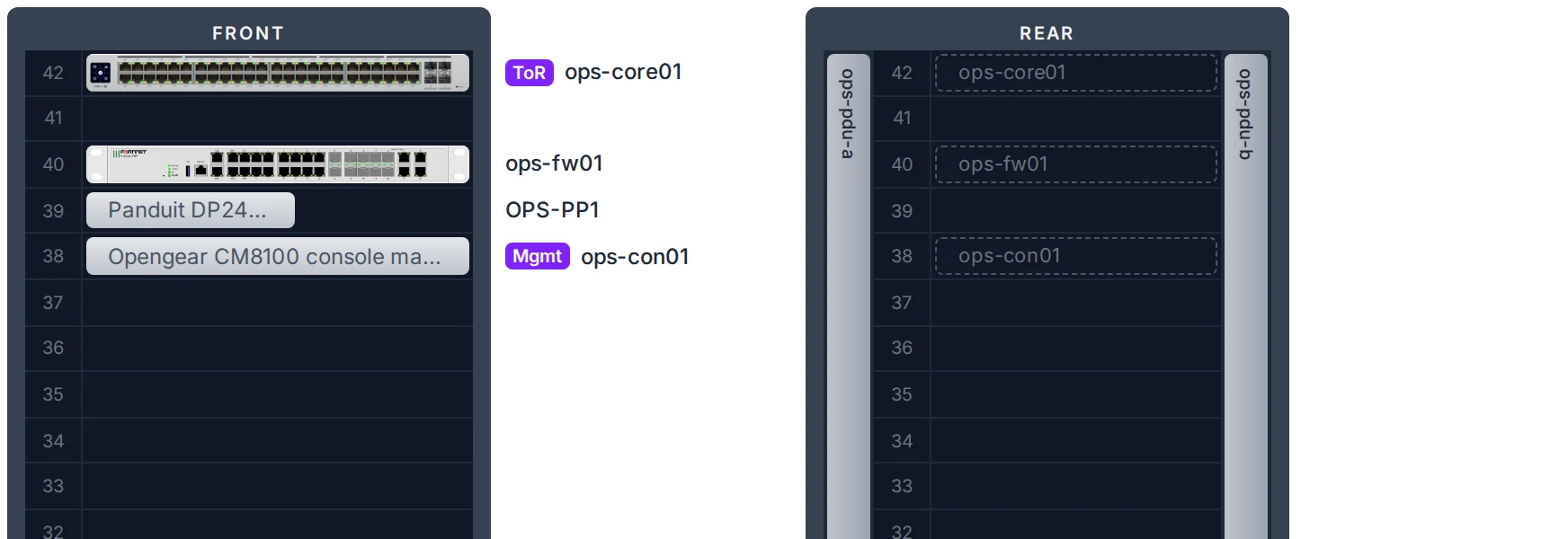
A server room rack elevation with a firewall, switches, servers, storage and UPS units in place.
Switch ports Team and up

Every switch port, and what is on the other end

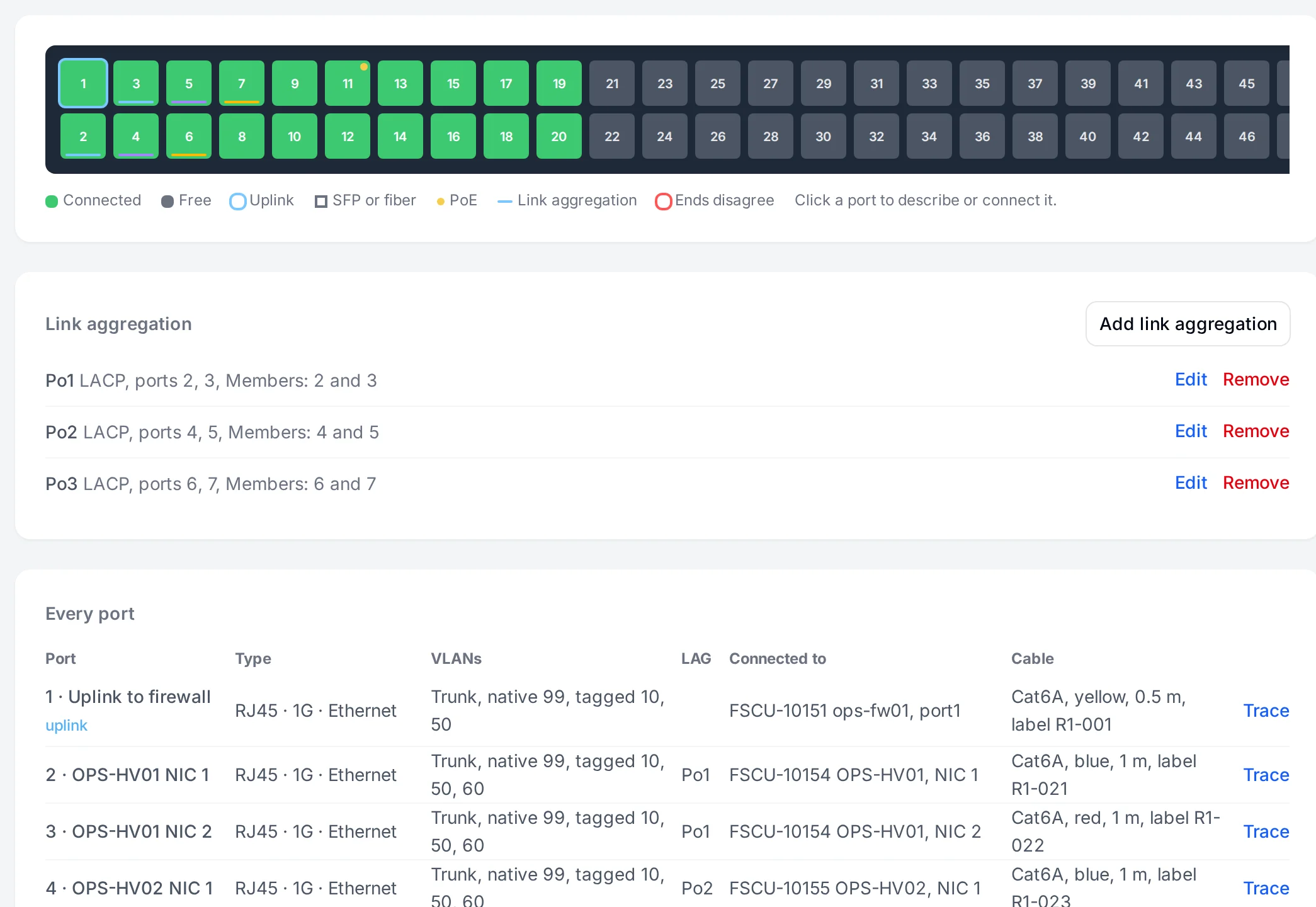
Set up a switch once, such as 48 ports plus 4 SFP+, and its faceplate appears. Give each port its speed, PoE, VLANs and link aggregation, cable it to the next device, and TekStacks warns you when the two ends disagree.

  • Faceplates with speed, PoE and VLANs at a glance
  • Access and trunk ports, native and tagged VLANs
  • Link aggregation and cabling, with mismatches flagged
  • Which console server port each device is on
A core switch faceplate with connected ports, link aggregation groups and the port list with VLANs.
Cables Team and up

Follow any cable, through every patch panel

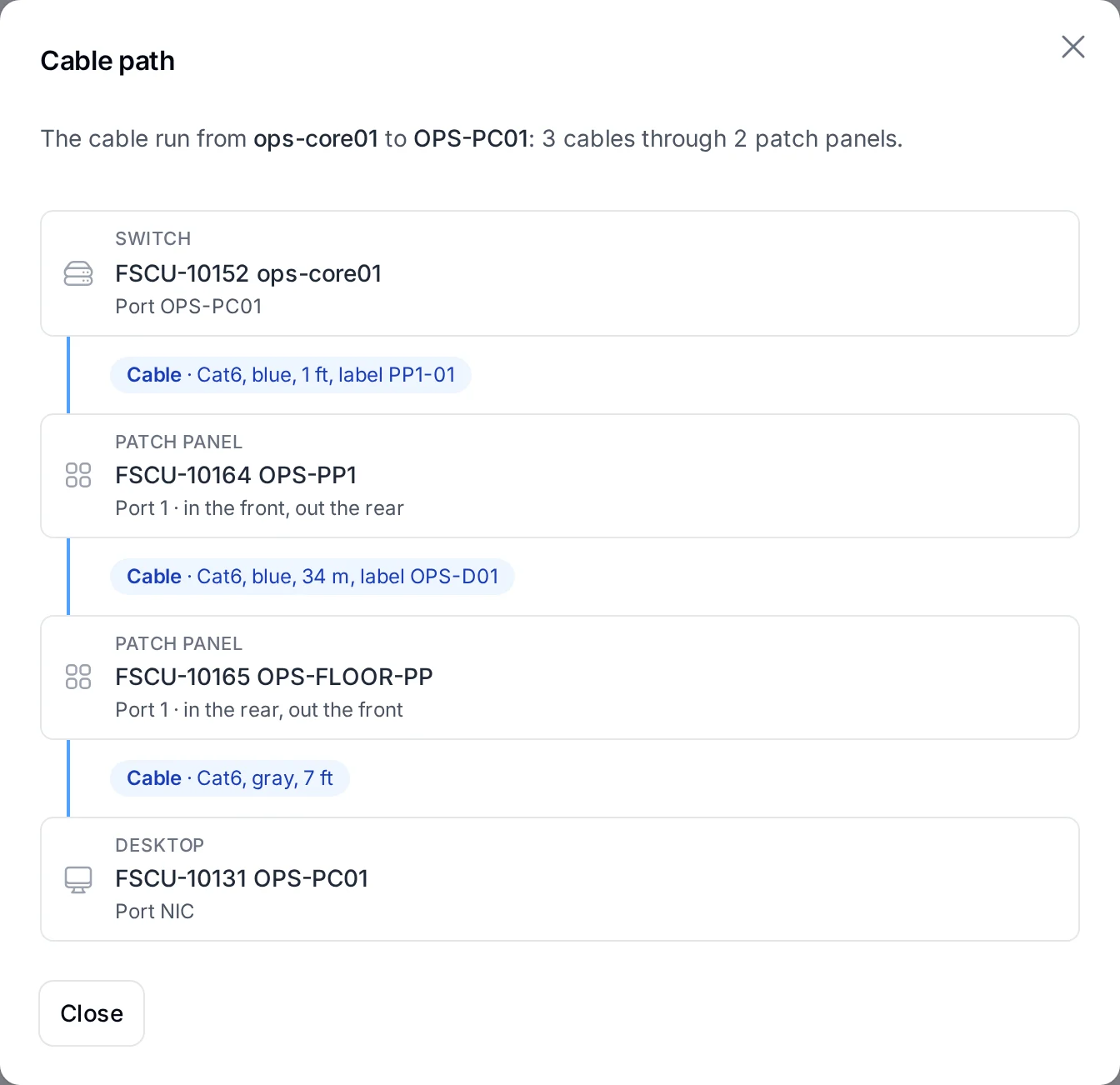
Each connection records its cable: type, color, length and label. Patch panels have a front and a rear for every port, so a path runs switch to panel, panel to panel, and out to the desk. Trace shows the whole path from either end.

  • Cat6, fiber, DAC and console cables with color and length
  • Patch panels front and rear, port by port
  • The whole path from any port in one click
A cable path from a desk through two patch panels to the core switch, with each cable's type, color and length.
IP addresses Team and up

VLANs, subnets and what holds every address

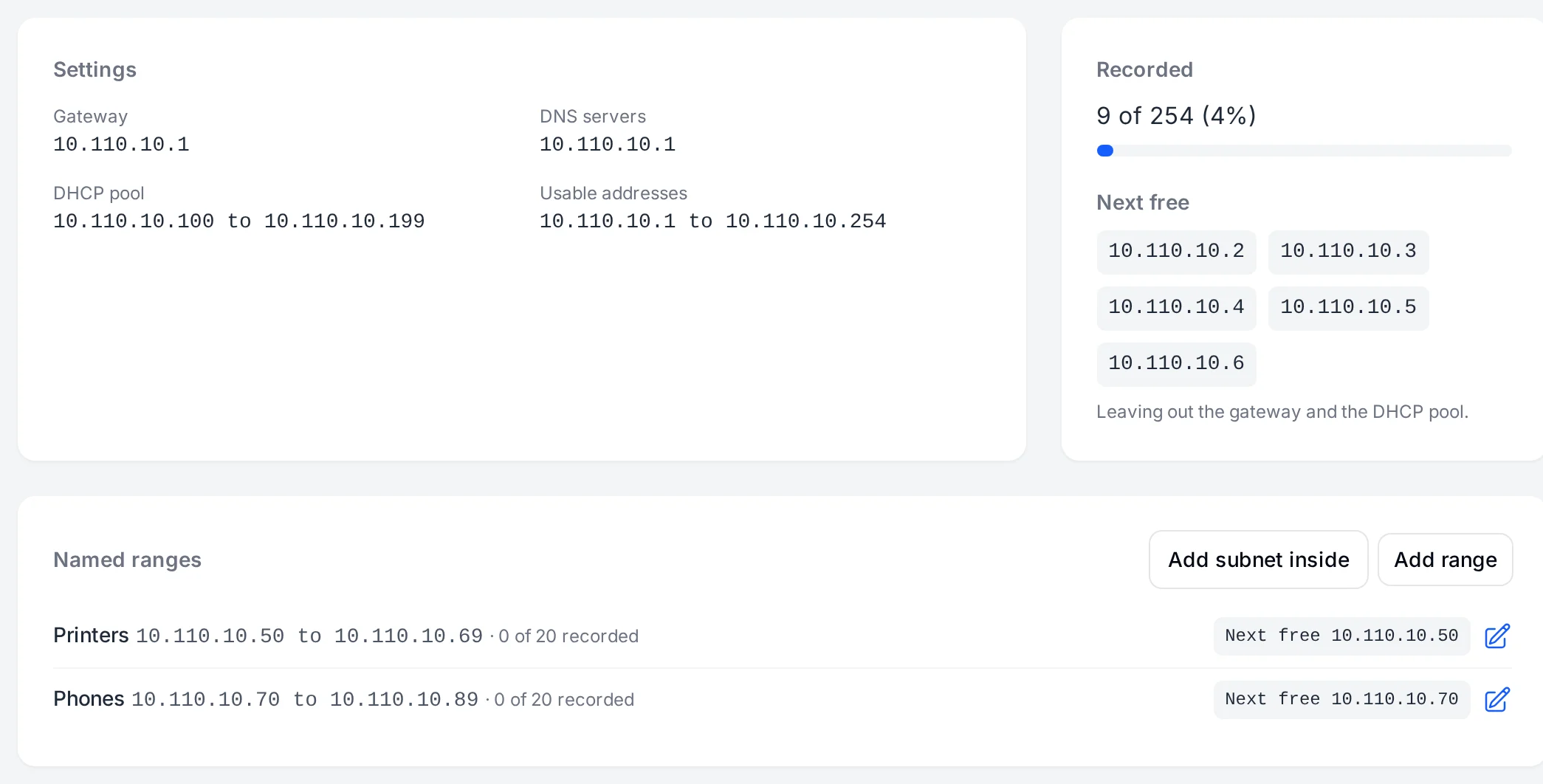
VLANs and subnets per site, with each address tied to the equipment that uses it, how full each subnet is and the next free addresses. A larger network shows the subnets inside it and the space still free between them.

  • Subnet fill and next free addresses, leaving out the DHCP pool
  • Subnets inside subnets, with the free blocks between them
  • Named ranges such as printers and phones, each with its next free address
A subnet page with its gateway, DHCP pool, how full it is and the addresses held by equipment.
Start free trial 30 days free, no card needed